Battlefield 6 settings for streaming are a different problem from the best Battlefield 6 settings. The standard competitive advice is to switch the Frame Rate Limiter off and let your GPU push every frame it can. If you play and stream on the same PC, that advice is exactly how your broadcast turns into a stuttering mess.
I stream BF6 on Fridays, Saturdays, and Sundays as ssx3000, playing and encoding on one machine, wrapped around a full time job and a stream schedule I actually stick to.
Here is the whole setup: the settings inside the game that leave room for OBS, the OBS settings that do not steal that room back, and fixes for the slow motion and black screen problems filling up the forums.
Cap Your Frames, Save Your Stream
Nobody warns you about this part. When your GPU is running flat out, OBS has nothing left to build your stream with. The official OBS troubleshooting documentation says it plainly: “The best option is to limit the game’s framerate or enable vertical sync; this will free up processing power for OBS Studio to composite.”
That is the exact opposite of what competitive guides recommend. Fine for a pure player. Wrong for a streamer. On a single PC, the Frame Rate Limiter in the graphics settings is the first of the Battlefield 6 settings for streaming you should touch.
Pick a cap your rig can actually hold on a full 64 player map, not the number you see staring at a wall.
The game gives you the tool to find it: System settings, then Performance Overlay, and the Simple option puts an FPS counter on screen. My full battlestation is on my gear page if you want the reference point.
The “Encoding overloaded” warning in OBS means the same thing. Per the same documentation, the GPU is overloaded or bottlenecked. The cap is usually the cure, not new hardware.
My Battlefield 6 Settings for Streaming
Battlefield 6 shipped with more than 600 graphics settings and options on PC, so I am not walking through all of them. These are the Battlefield 6 settings for streaming that actually matter once OBS is running.
- Frame Rate Limiter: On, set below what you sustain on full servers. Covered above. It is the whole trick.
- Upscaling: DLSS, FSR, or XeSS on the Quality option. Rendering at a lower internal resolution is the cheapest GPU headroom you can buy.
- Frame Generation: Off. The consensus across guides is that it inflates the FPS number while adding input latency, a bad trade in multiplayer. That goes for DLSS Frame Generation on RTX 40 series cards and for FSR 3 frame generation on AMD RDNA 3 cards alike.
- NVIDIA Reflex Low Latency: Enabled, or Enabled + Boost, which is what the game defaults to.
- Future Frame Rendering: Off to cut input delay. Even the game’s own Auto presets ship with it off.
- Motion Blur, Film Grain, Vignette, Chromatic Aberration: all off, including both World and Weapon motion blur. The consensus reason is visibility, and I have never missed any of them.
- The heavy quality settings: when you need more headroom, drop Lighting Quality, Effects Quality, and Volumetric Quality first. Keep Texture Quality high if your VRAM allows, since it mostly spends VRAM rather than GPU compute.
One setting you will not find is ray tracing. BF6 launched without it on purpose. Ripple Effect’s technical director said before launch that the game would not have ray tracing, with no near future plans either, a deliberate call to protect performance in 64 player multiplayer.
So when a guide tells you to “disable ray tracing” for extra FPS, it is describing a setting that does not exist. It is the tell that nobody opened the game before writing.
Point OBS at the Hardware Encoder
Your Battlefield 6 settings for streaming only work if OBS does not spend the headroom you just made. The whole point is to hand the encoding job to dedicated silicon instead of the parts of your GPU that are busy drawing the game.
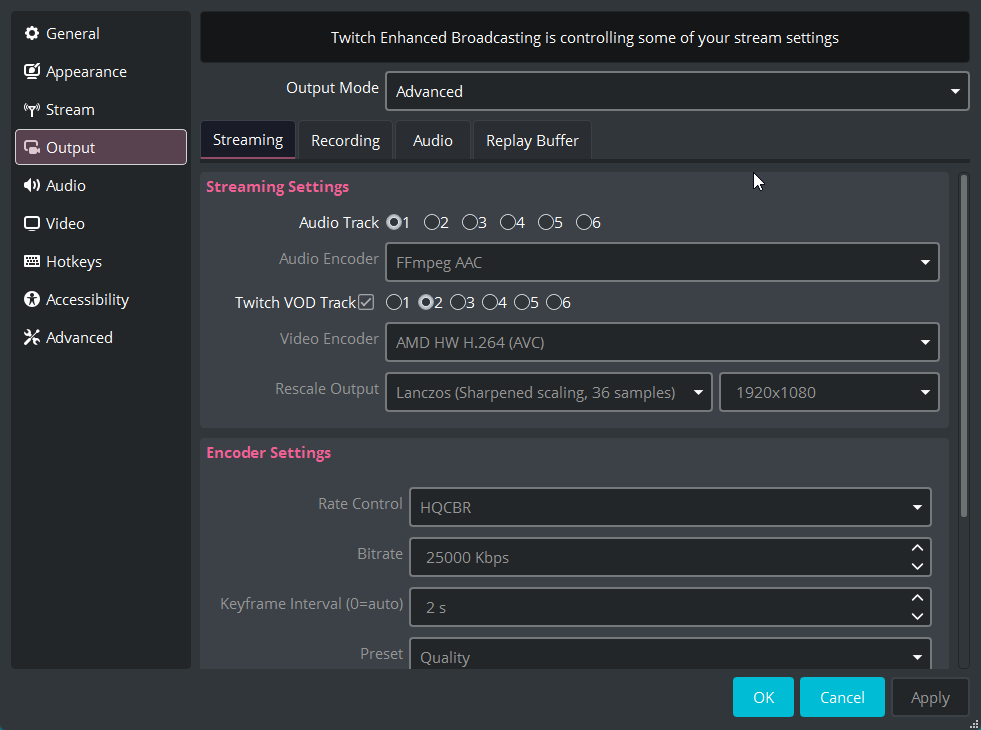
I run a Radeon card, so my OBS uses the AMD hardware encoder, listed as AMD HW H.264 (AVC) in the Output settings. If you stream on a GeForce card the NVENC option does the same job. Either way it is a dedicated hardware encoder, so encoding your stream has minimal impact on game FPS. The official OBS troubleshooting documentation covers both paths.
The catch lives in the preset details. On AMD I set Output Mode to Advanced, pick the AMD HW H.264 encoder, and leave the Preset on Quality with a plain HQCBR rate control. Cranking to a higher preset leans harder on the GPU and can drag you right back into encoder overload, so on a single PC I keep it simple.
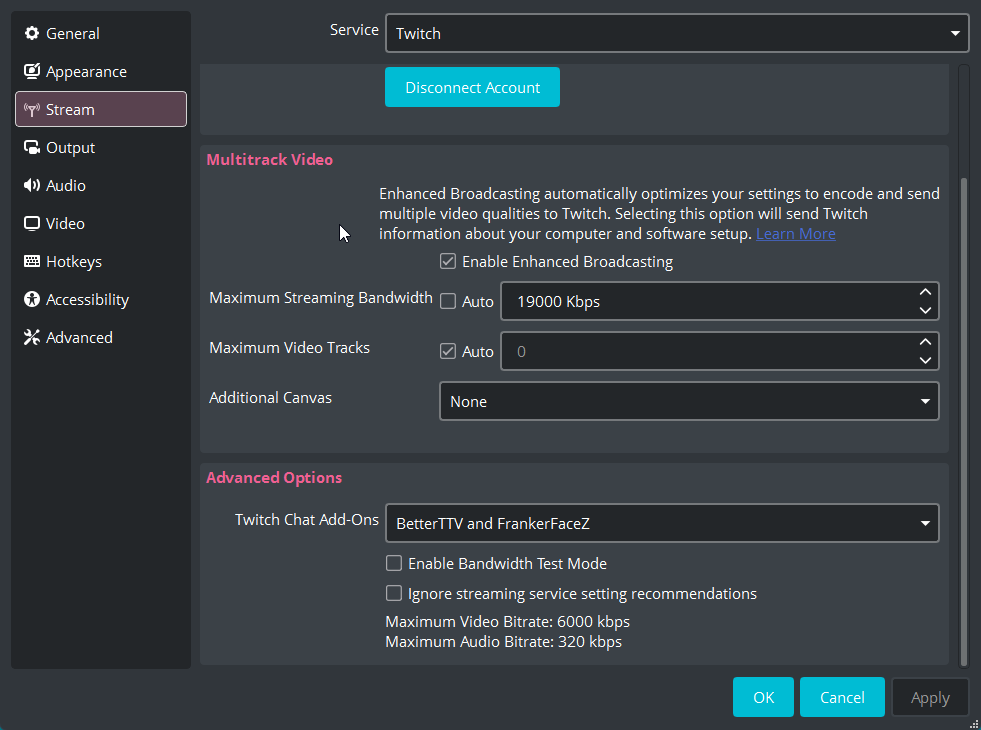
My rig also uses Twitch Enhanced Broadcasting, which lets Twitch send multiple qualities from the one encode. It is a nice bonus, but it is not the point. The point is that a clean AMD HW encode is what keeps these Battlefield 6 settings for streaming stable while you actually play.
One more piece of housekeeping from the official OBS documentation: disable Windows Game DVR, the background game recording built into Windows, so it is not quietly encoding behind your back.
When BF6 Goes Slow Motion
Sometimes every setting is right and the game still turns stuttery or slow motion the moment OBS starts streaming or recording. This exact symptom shows up in an EA forum thread from the beta era, and in an OBS forum case on a machine with an RTX 4080 Super and a Ryzen 7 5700X3D. Hardware like that should shrug off a single PC stream.
In that OBS forums case, the confirmed culprit was not bitrate, drivers, or the game. It was a third party OBS plugin, an OpenVR capture plugin, causing a stutter every second even though the source was hidden and SteamVR was not running. Disabling the plugin fixed it.
So run the diagnostic OBS support actually gave in that thread, and it is exactly what I would run on my own rig. Test with a clean or portable OBS install with zero third party plugins, and put your log through the OBS log analyzer.
Users in the EA thread also suggest turning on “Limit capture framerate” in the Game Capture source properties and “Dynamically change bitrate to manage congestion” in the advanced network settings. Those are user reports, not confirmed fixes, but they cost nothing to try.
Black Screens, Launch Order, and Javelin
The other headline complaint is Game Capture going black after a few captures. In the Steam thread where players worked this one out, the fixes users confirmed were simple. Try them in this order:
- Launch OBS as administrator before launching BF6. The thread is explicit that OBS opens first, then the game.
- Switch the source to Window Capture if Game Capture still blacks out.
- Run the game Windowed or Borderless if your capture looks zoomed in. Fullscreen was the trigger there.
- Do a clean GPU driver reinstall if a background capture feature (Nvidia ShadowPlay or AMD ReLive Instant Replay) is the piece that broke.
One honest caveat. Those threads date to the launch window in late 2025, and this behavior is patch dependent. As of Season 3 in mid 2026 the game is on update 1.3.3.0, which kept tuning netcode and bandwidth handling, so retest on the current build before assuming anything is still broken.
There is one more variable worth naming: Javelin, the kernel level anticheat, and the reason BF6 requires TPM 2.0 and Secure Boot at all. Players have reported Javelin interfering with other apps, including audio plugins used in OBS, and some troubleshooting guides suggest closing OBS when Javelin throws launch errors. None of that is confirmed by EA. I treat it as one more reason to keep an OBS install clean and boring.
Headroom Is the Whole Method
Every fix in these Battlefield 6 settings for streaming is one idea wearing different hats. Leave headroom. Cap the game, hand the encoding to dedicated hardware, and strip out anything (plugins, fancy presets, background recorders) that quietly spends GPU you thought you had.
So dial in your Battlefield 6 settings for streaming, run a short test recording before your next live show, and watch the Performance Overlay while you do it. The uncapped number was never the point. The stream is the point.
If you want to see these settings earn their keep on a live broadcast, I am on three days a week at twitch.tv/ssx3000. Come say hi first, then lurk. That is how everybody starts.
Viewers cannot see your frame rate. They can see your stutter.
Leave a Reply